

Controlling and streaming a LOREX PTZ ipcam using Raspberry pi with Flask, Motion and AJAX.
You will need
- 1 PTZ network cam
- 1 Raspberry pi
- 1 USB Wi-Fi dongle
- 1 Cat5 Ethernet cord
The principle of this tutorial should remain the same for different ipcam manufacturers however the commands used may change. I used wireshark to sniff network traffic as I made requests from a browser to the ipcameras built in webserver.
https://www.wireshark.org/download.html
Commands like this may change…
http://192.168.1.xxx/cgi-bin/operator/ptzset?move=upleft&move=repeat
Network Layout
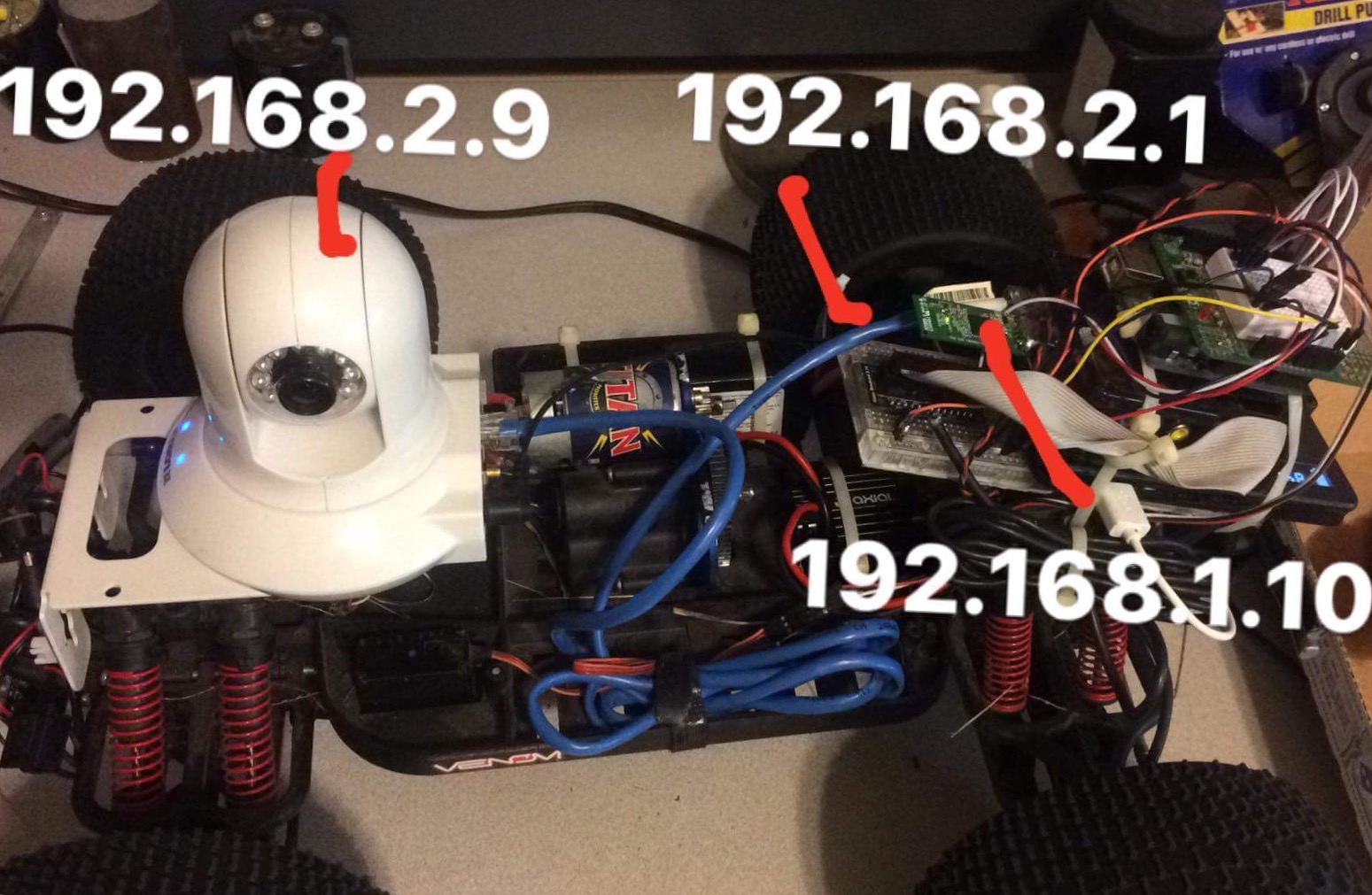
First we need to set the ip of the camera to static through its built in web interface follow manufactures instructions for this. We will use the address 192.168.2.9
Now in the network interfaces config, the USB wifi dongle will be assigned a static IP of 192.168.1.10 and the pi’s ethernet port will go to 192.168.2.1
$ sudo nano /etc/network/interfaces
This is what my /etc/network/interfaces looks like.
iface lo inet loopback
auto eth0
allow-hotplug eth0
iface eth0 inet static
address 192.168.2.1
netmask 255.255.255.0
network 192.168.2.1
broadcast 192.168.2.255
auto wlan0
allow-hotplug wlan0
iface wlan0 inet manual
wpa-roam /etc/wpa_supplicant/wpa_supplicant.conf
iface wlan0 inet static
address 192.168.1.10
netmask 255.255.255.0
network 192.168.1.0
broadcast 192.168.1.255
gateway 192.168.1.1
Next we need to install motion https://github.com/Motion-Project/motion
$ sudo apt-get install motion
Change this in the /etc/motion/motion.conf
$ sudo nano /etc/motion/motion.conf
- daemon on
- stream_localhost off
- netcam_url value http://192.168.2.9/video.mjpg (change to the path of your cams video stream)
- netcam_userpass user:pass (username:password)
Install Flask http://flask.pocoo.org/
$ sudo apt-get install python-pip
$ sudo pip install Flask
Remove ifplugd so the pi doesn’t disable wifi when the ethernet jack is plugged in https://github.com/BillTompkins/pi-spiexpansion/wiki/Remove-ifplugd
$ sudo apt-get remove ifplugd
Allow IP forwarding
$ sudo nano /etc/sysctl.conf
- Find and uncomment – net.ipv4.ip_forward=1
Run this command so we dont have to reboot.
$ sudo sh -c "echo 1 > /proc/sys/net/ipv4/ip_forward"
Modify IP tables and NAT to allow traffic from wlan to ethernet.
$ sudo iptables -t nat -A POSTROUTING -o wlan0 -j MASQURADE
$ sudo iptables -A FORWARD -i wlan0 -o eth0 -m state --state RELATED,ESTABLISHED -j ACCEPT
$ sudo iptables -A FORWARD -i eth0 -o wlan0 -j ACCEPT
Don’t know if this is 100% necessary but I will include it anyways.
$ sudo apt-get install dnsmasq
$ sudo nano /etc/dnsmasq.conf
listen-address=192.168.2.1 # listen on
# Bind to the interface to make sure we aren't sending things
# elsewhere
bind-interfaces
server=8.8.8.8 # Forward DNS requests to Google DNS
domain-needed # Don't forward short names
# Never forward addresses in the non-routed address spaces.
bogus-priv
# Assign IP addresses between 192.168.2.2 and 192.168.2.100 with a
# 12 hour lease time
dhcp-range=192.168.2.2,192.168.2.100,12h
Now that all the back end should be up and working lets write some code.
First create a new folder
$ sudo mkdir ipcam_control
Navigate into that folder
$ cd ipcam_control
Create a new Python script
~/ipcam_control $ sudo nano webcam.py
Copy and paste this code into the webcam.py file
Change the ip address and command of the get request to match your camera, admin:admin is default username and password for the LOREX.
ctrl+O to save ctrl+X to exit back to the command line.
from flask import render_template, request
from requests.auth import HTTPBasicAuth
import requests
app = Flask(__name__)
print "Done"
@app.route("/")
def index():
return render_template('index.html')
#PTZcam
@app.route('/ptzUpleft')
def ptzUpleft():
requests.get('http://192.168.2.9/cgi-bin/operator/ptzset?move=upleft&move=repeat', auth=HTTPBasicAuth('admin', 'admin'))
return 'true'
if __name__ == "__main__":
print "Start"
app.run(host='0.0.0.0',port=8000)
Now create a new sub directory called templates, flask looks for the index.html file in this folder.
$ sudo mkdir templates
Change to templates directory
~/ipcam_control $ cd templates
Create new html file.
$ sudo nano index.html
Copy and paste this code into index.html
style="-moz-user-select: none; -webkit-user-select: none; -ms-user-select:none; user-select:none;-o-user-select:none;"
unselectable="on"
onselectstart="return false;"
onmousedown="return false;">
<script src="https://ajax.googleapis.com/ajax/libs/jquery/3.1.1/jquery.min.js"></script>
<br>PTZ CONTORLS</br>
<img src="http://yourip:8081>
<table style="width: 306px;">
<tbody>
<tr>
<td style="text-align: right"><button href="#" id="ptzLF" style="font-size: 20px; text-decoration: none;">↖</button></td>
</tr>
</tbody>
</table>
</div>
<script>
$( document ).ready(function(){
$("#ptzRR").on("mousedown", function() {
$.get('/ptzRR');
}).on('mouseup', function() {
$.get('/ptzStop');
});
});
</script>
Reboot the pi for good measure
$ sudo reboot
Now when the command line is available again navigate back to your project folder created earlier.
$ cd ipcam_control
Now launch your application
~/ipcam_control $ sudo python webcam.py
Once that is up and running open a browser on any computer or device connected to the 192.168.1.x network, go to the pi’s IP address and port 8000, for this tutorial we use http://192.168.1.10:8000. You should see a video stream and a single button linked to command the camera, similar to the ones pictured below.
Thanks for reading!

